If you are like me you start the working day with a coffee then log into your AirWave server to check all is good in the world. But what do I, and many other people, often see? 'Mismatched'!! Most people don't like this because the word "mismatched" sounds like a bad thing to have. Now, what does this actually mean? Every device (WLAN controller, Access Point or switch) managed by AirWave has a running configuration and AirWave stores a copy of that running configuration and compares the two. A mismatch simply means that there is at least one character different between the running configuration on the device and the one stored on AirWave.
It all depends on if you want to use AirWave for configuration management or not. If not, then it is better to switch off "Audit Configuration on Devices" on the group level and remove it from the header bar and columns in the different views.

Devices can be added in two different modes. AirWave calls them "Monitor Only" and "Manage Read/Write". As the name already implies a device in monitor only mode cannot be configured from AirWave and a device in manage read/write mode can.
警告!如果您不想有糟糕的一天,则切勿在管理读/写模式中添加已经配置的设备到Airwave。始终从添加仅监视器模式开始,然后根据需要决定更改以管理读/写模式。当您在管理读取/写入模式中添加已经配置的设备时可能发生的事情是,AirWave将在设备上的运行生产配置与Airwave上的出厂默认配置进行比较,从而用出厂默认配置覆盖生产配置。那不是我今天所说的良好开始。如果发生这种情况,这取决于Airwave的版本,但我喜欢在安全的一侧并首先使用仅监视模式。

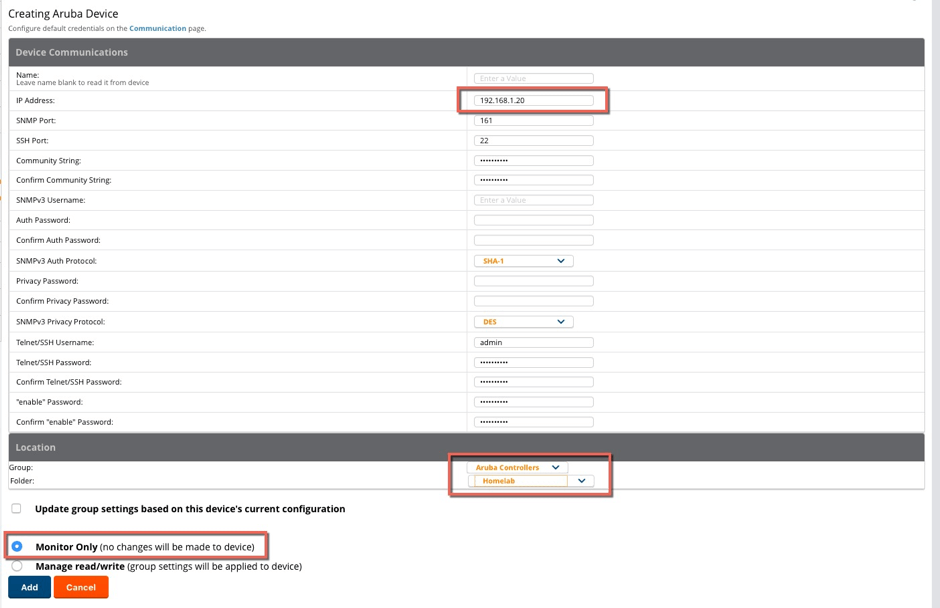
So we start with adding a Group to AirWave and then add the device to that group. The only thing that you need is the IP address of the device and to select the right Group and Folder. In the example below I made sure that the credentials were properly configured in the Device Setup -> Communication page. Also, make sure to add in Monitor Only mode.
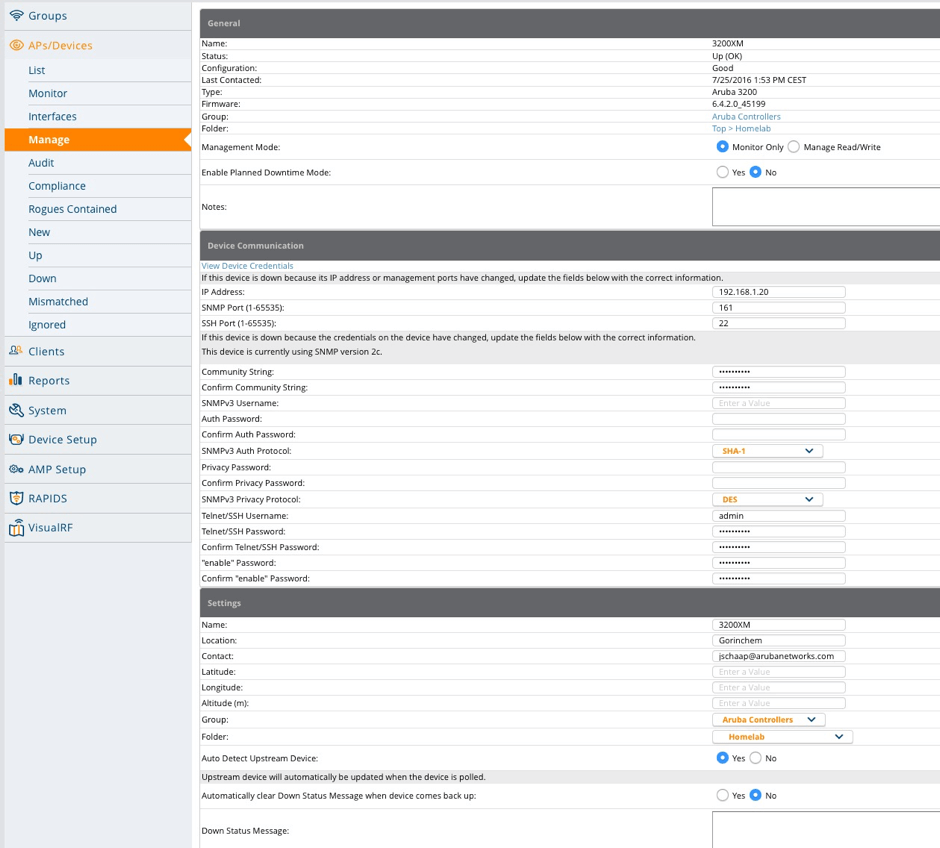
After some minutes the device will be visible in AirWave and also the complete running configuration has been imported. Name, Location, Contact etc. can be found in the AP/Devices -> Manage page. At the bottom of this page, you will also find an "Import Settings" button to import manually if the device was previously added to AirWave and the settings were not imported or changed.
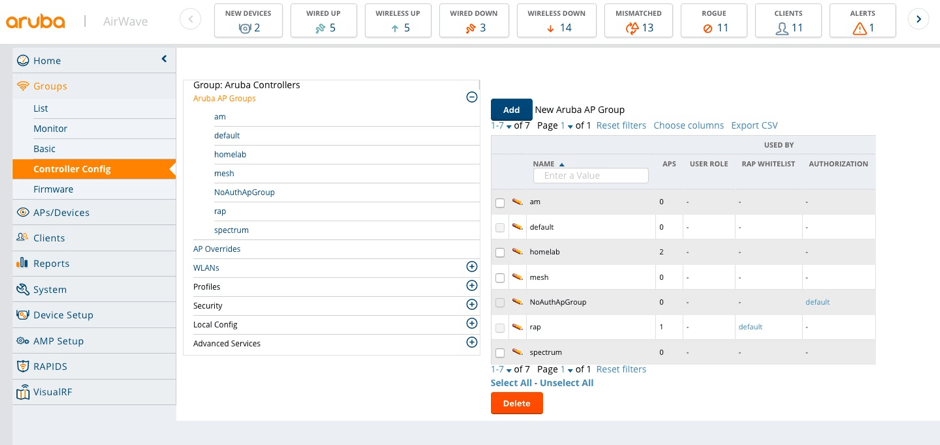
And the complete configuration can be found in Groups -> Controller Config
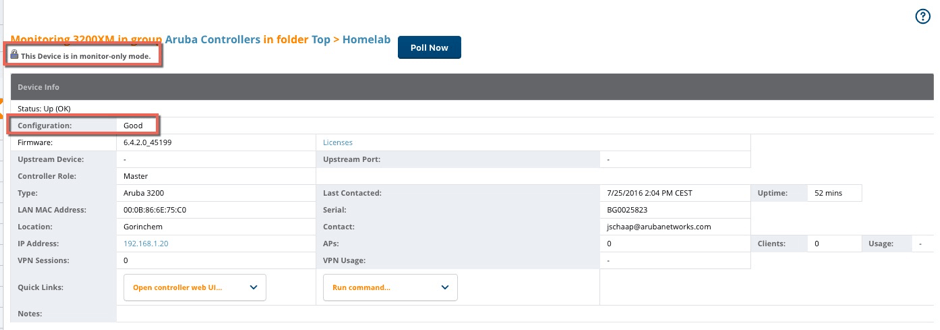
When looking at the monitor page of the device you can see that the configuration is good and that the device is still in monitor-only mode.
Now, where does mismatched come from? If I, for example, go to the WebUI of the controller directly and add an SSID then this will be seen by AirWave as a mismatch. You should never change any configuration via the WebUI or CLI when AirWave is used for configuration management. In the example below I have added a new SSID profile on the controller and after clicking "Audit" it will lead to the mismatch. Clicking the "Import" button will import the new configuration and clear the mismatch.
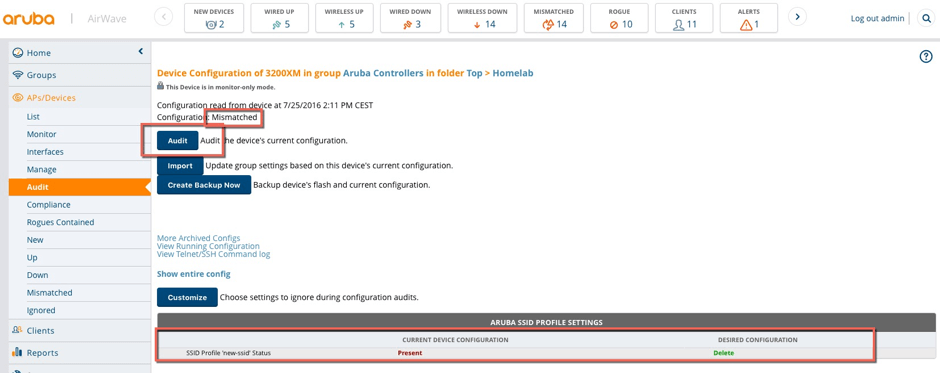
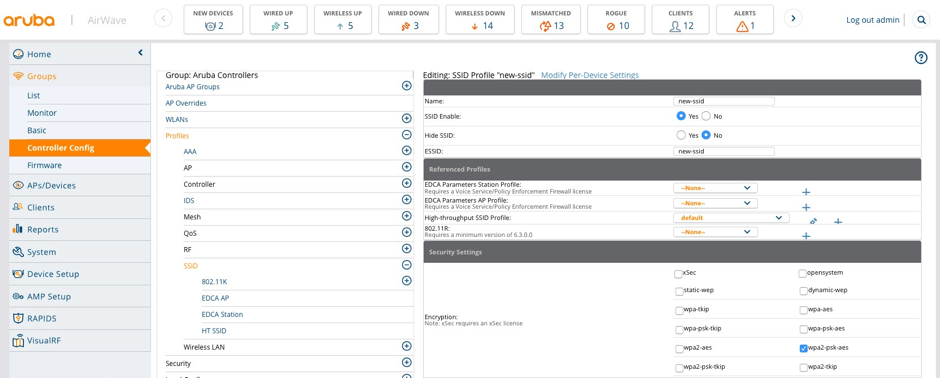
The example above only shows how mismatches are created and what you really should do, of course, is move the device from monitor-only mode to manage read-write mode and start using AirWave for configuration management. In Groups -> Controller Config you will find the complete configuration and that is where you do your add/remove/changes.
If we see the word "mismatched" in AirWave, we now know everything will be okay. Now, finish your morning coffee and have a great work day. That's how simple the solution is.