About the Author

Aruba Corporate Marketing blogs help you keep up with the latest network trends and news. Blogs are written by current and past Arubans employees. If you have any questions about these blogs, feel free...
Full bioAccount Management Overview
MyNetworking portal supports a many-to-many relationship between companies and people. A person can belong to more than one company and a company can have more than one person. A person can have a different role at each company. Licenses and products belong to the company and all the people can view the licenses and products.
Roles
There are three roles in MyNetworking portal:
- Administrator
- User
- Reseller
AnAdministratorcan:
- see all screens in MNP
- invite people to the account
- make updates to the people at the account such as change their role or remove them from the account
- accept requests to transfer assets to their company
- initiate the transfer of assets to another company
People with the role ofUsercan see all the screens on the home page, however the following links have been disabled:
- Manage Users
- Create Company
- Transfer Assets
AUserwill not see theTransfer Assetslink in theView Licensessection.
The Administrator will define the screens aResellerwill see in MNP when they issue the invitation to join the company. The term "reseller" doesn't necessarily mean this person has to be a reseller. The wider definition would be any person who needs access to a company to perform specific tasks and who does not participate in account management. Like aUser, aResellercannot manage users, create companies or transfer assets.
Account Management screens
Edit Profile screen
There are three screens in MNP used to manage your account:
- Edit Profile
- Manage Users
- Create Company
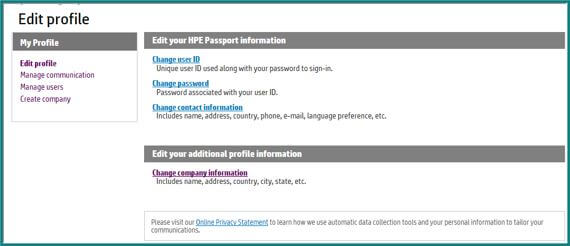
Use Edit Profile to make edits to your HPE Passport account such as User ID (usually your email address), change your password or change preferences such as language.
TheChange company informationlink is used to make updates to your company name and address within MNP.
Manage Users screen
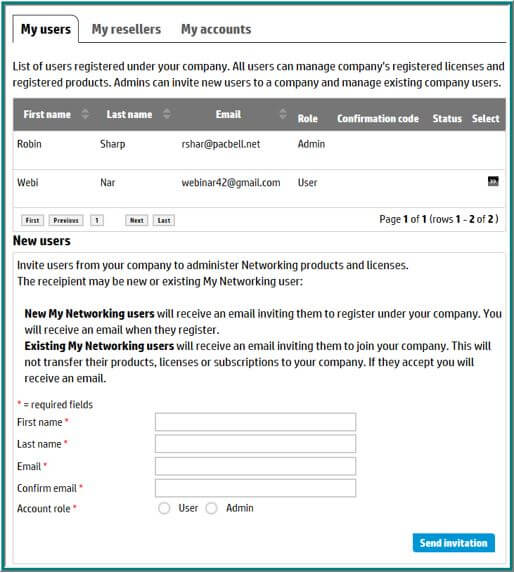
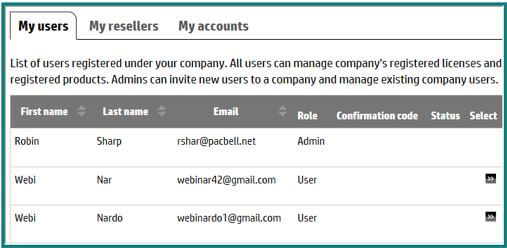
In the Manage Users screen, an Administrator can add/edit/delete other administrators and users from theMy Userstab.
Warning: Inviting a person with an existing MNP user account to be an admin at your company from this screen will remove them from their default account. UseCreate companyto add them to your company and keep them at their default account.
TheMy Resellerstab is used to add/edit/delete other people to the account. The reseller role can be used to restrict access to specific areas in MNP such asMy LicensesorMy Software.
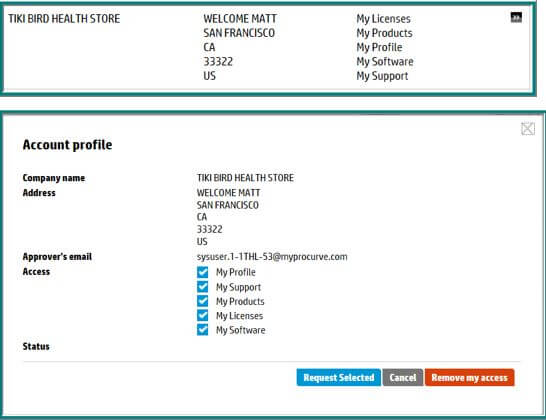
All the companies you are associated with are listed in theMy Accountstab. Your default/primary account can be identified by the ">>" icon. You can use this link to request changes to your access or to be removed from the account. NOTE: If you are the only Administrator at the company, you must add another administrator prior to being removed.
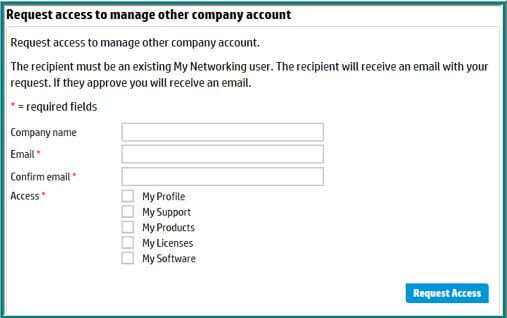
You can request access to another account by completing theRequest access to manage other company accountform found at the bottom of theMy accountstab.
Create company screen
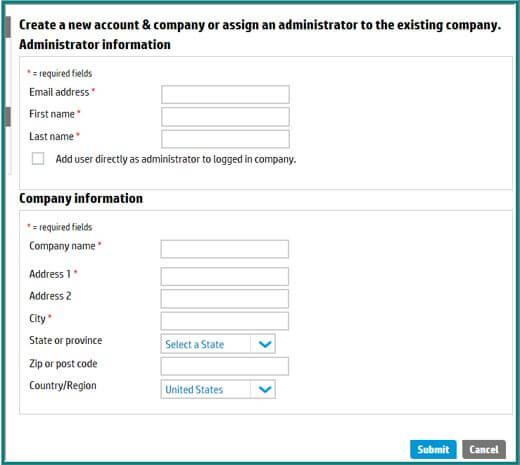
create company screen has a dual role. You can create a new company and assign the administrator, or you can add more administrators to your company.
Account Management How To
Add an Administrator to your company
You can add a person to a company where you are an administrator using 1 of 3 methods.
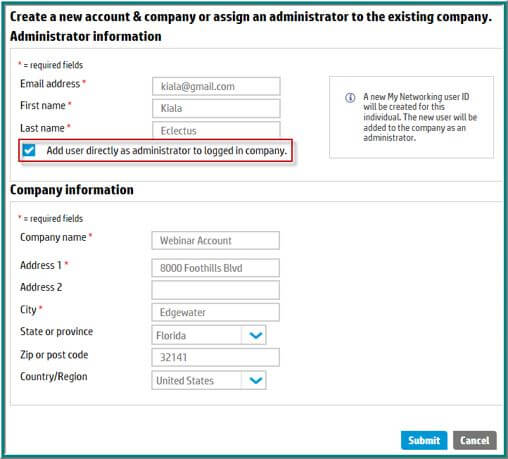
Method 1 (Recommended):This method will bypass the invitation process so be sure to confirm the proposed administrator is aware they are being added to your account.
For existing MNP users, the person isaddedto your company and remains associated to their current company.
For people new to MNP, a user account will be created for them as part of this process.
- Log in to the account where you wish to add an administrator.
- SelectCreate Company
- Enter the email address of the person who will be added as an administratora/. If the person is new to MNP please enter their first and last name.
b/. If the person has an MNP account their name will be auto-populated. - Check the box that instructs MNP to "Add user directly as administrator to logged in company." This will autofill the company name and address in theCompany Information
- Click theSubmit
Method 2:邀请一个人成为一个n administrator to your account using this method uses an invitation and acceptance process.
For existing MNP users, the person ismovedto your company and removed from their existing default company.
For people new to MNP, a user account will be created for them as part of this process.
- Log in to the account where you wish to add an administrator.
- SelectManage users,theMy user'stab will be active.
- Enter the first name, last name and email address of the person who will be invited to join your company as an administrator
- Select "Admin" for the Account role and click theSend Invitation
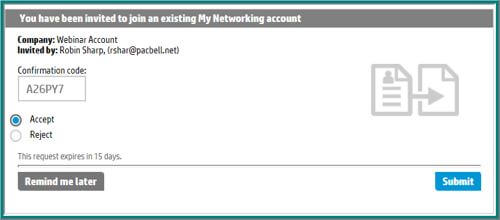
- A confirmation code will be displayed on the screen and an email will be sent to you with the confirmation code. You must provide this confirmation code to the invited administrator.

- When the invited administrator logs in to MNP, they will see a screen where they can Accept or Reject the invitation. They may also choose to delay their decision. The invitation will expire after 15 days.To Accept (or Reject) the invitation, the person will enter the confirmation code, choose the desired action and click theSubmitbutton.

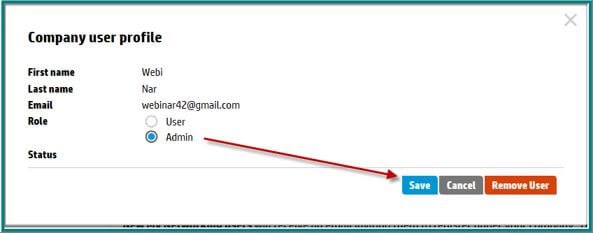
Method 3:If the person is already a User at your company you can promote them to Admin.
- Log in to the account where you wish to edit a User's role
- SelectManage users,theMy user'stab will be active. All the people with User or admin role are listed.If you have any outstanding invitations the confirmation code will be displayed in theConfirmation code列。confirmation code will expire after 15 days or you can cancel the invitation.
- Click the ">>"Selecticon to the right of the person to be promoted. Change the Role from User to Admin and click theSavebutton.
- The person will receive an email informing them of the change to their role.


Invite a person to be a User at your company
邀请一个人成为一个User at your company uses an invitation and acceptance process.
For people new to MNP, a user account will be created for them as part of this process.
- Log in to the account where you wish to add an administrator.
- SelectManage users,theMy user'stab will be active.
- Enter the first name, last name and email address of the person who will be invited to join your company
- Select "User" for the Account role and click theSend Invitationbutton.
- A confirmation code will be displayed on the screen and an email will be sent to you with the confirmation code. You must provide this confirmation code to the person you are inviting to be a User.
- An invitation and instructions will be sent to the User candidate. The instructions include aRegister melink to create an MNP account.
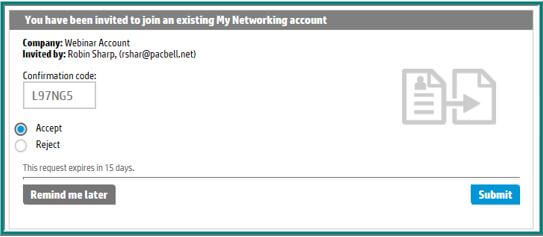
- When the customer first logs in to MNP they will see a screen where they can Accept or Reject the invitation. They may also choose to delay their decision. The invitation will expire after 15 days.To Accept (or Reject) the invitation, the person will enter the confirmation code, choose the desired action and click theSubmitbutton.


Invite a person to be a Reseller at your company
邀请一个人成为一个reseller at your company uses an invitation and acceptance process. The person must have an MNP user account.
- Log in to the account where you wish to add an administrator.
- SelectManage users,then select theMy resellers
- Enter the first name, last name and email address of the person who will be invited to join your company.
- In the Access list, check the screens you would like the person to see at your company. Click theSend invitationbutton to complete the invitation.
- A confirmation code will be displayed on the screen and an email will be sent to you with the confirmation code. You must provide this confirmation code to the person you are inviting to your company.
- The invitation record will be displayed in theMy resellerlist. The confirmation code will be stored for your reference until it either expires, is cancelled or the reseller accepts/rejects the invitation. You can edit the proposed screen access by clicking the ">>" select icon to the right of the record.
- An invitation and instructions will be sent to the Reseller candidate.
- When the customer next logs into MNP they will see a screen where they can Accept or Reject the invitation. They may also choose to delay their decision. The invitation will expire after 30 days.To Accept (or Reject) the invitation, the person will enter the confirmation code, choose the desired action and click theSubmitbutton.


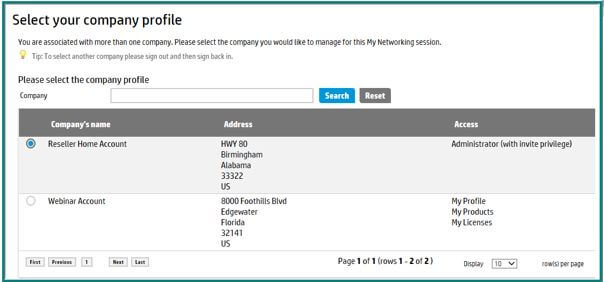
Note: Now that the person is associated with their own account and the new account, they will be presented with a choice of their two accounts each time they log in to MNP.
How to create a new company and add an administrator
TheCreate a companyallows you to create a new company and add an administrator to that company. You can also use this screen to add more administrators to you company.
- Log in to MNP and selectCreate companyfrom the home page
- Enter the email address of the person who will be the administrator at the new company.
In some cases, you may want to create a new company and add yourself and another person as an administrator. Always add yourself first so that you have admin access to the new account and have the ability to add more people.
If the person is an existing MNP customer, their name will be auto-populated. Otherwise, enter their first and last name.
- Enter the new company information and click theSubmit
You will see this confirmation message:
- Sign out of your current account and log in to MNP. Select the new company and click theSelect
- Return to theCreate company
a. Enter the email address of the next person to be an administrator at the account.
b. Check the box named "Add user directly as administrator to logged in company" and click theSubmit
c. Repeat steps a and b until all admins are added to the company.


Request access to another company
If you know the name and administrator email address you can request access to another account. This functionality allows you to initiate an invitation to yourself to join the company.
- Log in to MNP, select Manage users
- In the My accounts tab, scroll to the bottom of the page
- In the section labelledRequest access to manage other company accountenter the company name you wish to join and the administrator's email address.
- Select the MNP screens you would like to be able to access and click theSubmit
- If the administrator is associated with multiple companies, you will be asked to confirm which company you want to join.
- company will be added to your list of accounts in a Pending status. The request will expire in 30 days and you can cancel it anytime.
- The administrator will receive an email with a confirmation code that states an invitation has been extended to you to join their company. You will need to confirmation code from the administrator to complete the process.
Edit Admins/Users and Resellers
管理员可以编辑用户who are associated with their company.
- Administrators can be changed to Users or removed from the company.
- Users can be changed to Administrators or removed from the company.
- Resellers screen access can be updated or they can be removed from the company.
- Log in to MNP and selectManage users
- Locate the person whole role will be edited. They will be in theMy usersorMy resellers标签根据当前的角色。
- Click the ">>" select icon next to the record to be updated. This will open a window where you can edit andSavethe record.