Address Groups
Configuration > Templates & Policies > ACLs > Address Groups
Use the Address Groups tab to view and manage address groups in your SD-WAN network. An address group is a logical collection of IP hosts or subnets that can be referenced in source or destination matching criteria in the zone based firewall and security policies (route, QOS, optimization, and so forth).
NOTE:Orchestrator supports up to 500 address groups.

Add an Address Group
Follow the steps below to create a new address group:
Click添加组to open the Add Address Group dialog box.
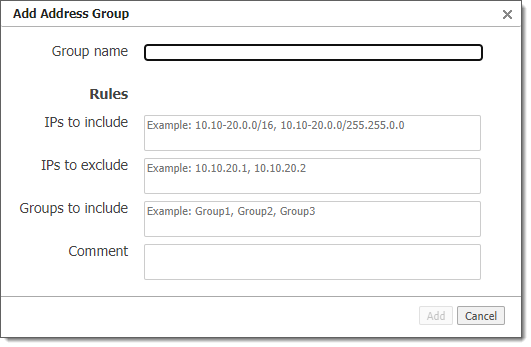
Provide the following details in the fields provided:
Field 描述 Group name Enter a unique name for the group, up to 64 characters long.
NOTE:Group names can only contain uppercase and lowercase letters, numbers, dots, underscores, and hyphens.IPs to include Enter one or more IP addresses or subnets to include in the group (seeAddress Group Formats以下)。 IPS排除 在包含IP范围的情况下,输入一个或多个IP地址以排除。 Groups to include 输入一个或多个地址组的名称。
NOTE:Group inclusion only supports two levels of nesting. For example, if Group1 includes Group2 and Group2 includes Group3, you could not include Group1 anywhere because it already contains two levels of nested groups.Comment Enter an optional comment that describes the address group and how it might be used. ClickAdd创建地址组,或单击Cancelto close the dialog box without making any changes.
Add a Rule to an Address Group
Follow the steps below to add a rule to an existing address group:
选择要在表上方的下拉列表中添加规则的地址组。
ClickAdd Ruleto open the Add Rule dialog box.
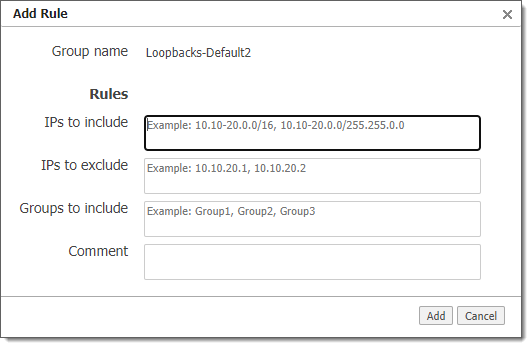
Provide the details for the new rule in the fields provided (see field descriptions inAdd an Address Group).
ClickAddto create the rule or clickCancelto close the dialog box without making any changes.
删除地址组
Follow the steps below to delete an address group:
Select the address group you want to delete from the drop-down list above the table.
Click删除Group.
确认对话框打开。
Click删除确认您的选择并永久删除所选组及其所有规则。否则,请单击Cancelto return to the list without deleting the group.
导出地址组
You can export the current address groups to a CSV file as a backup to make bulk modifications outside of the Orchestrator UI.
To export address groups:
ClickExport CSV.
In the save dialog box, browse to the location where you want to save the file, provide a name for the file, and then clickSave.
Open the saved file in Excel or another program to view or modify its contents.

NOTE:When editing exported rules and address groups, you can modify the included or excluded IPs, included groups, or comments to overwrite the same rule when imported. If you modify the group name on a rule, however, it will create a new rule when imported.
Import Address Groups
To import address groups from a CSV file:
NOTE:You can import a file that was exported and modified, or a new file that contains data in the same rows and columns as the exported file. Columns are ordered as Name, Included IPs, Excluded IPs, Included Groups, and Comment. The first row of the import file will be ignored.
ClickBulk Import打开地址组 - 批量上传对话框。
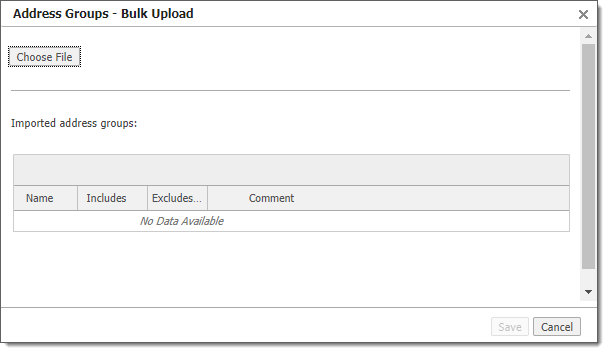
ClickChoose File, locate and select the CSV file to be imported, and then clickOpen.
Review the groups and rules to be imported.
ClickSaveto import the file and merge with or replace the existing address groups, or clickCancelto close the dialog box without making any changes.
View a Single Address Group
By default, all address groups are displayed in the table on the Address Groups tab. To filter the table to a single address group, select the group from the drop-down list above the table.
NOTE:您只能在查看单个地址组时将规则添加到现有组中。您不能添加与现有组相同名称的组。
编辑或删除规则
要编辑或删除现有规则,请单击规则右侧的编辑图标。打开“编辑规则对话框”。

To edit the rule, modify the available fields, and then clickSave.
要删除规则,请单击删除.
Using Address Groups in Match Criteria
When specifying match criteria for IP/Subnet, you can use an address group by enabling theSrc:DestandGroupsoptions.

Address Group Formats
An address group can include IP addresses, subnets, address groups, or any combination thereof. For IPs and subnets, the following formats are allowed:
One or more IP addresses: 10.10.10.1 or 10.10.10.2, 10.10.10.2, 10.10.10.3
IP subnet: 10.10.0.0/16 or 10.10.0.0/255.255.0.0
IP range: 10.10.10.10-20
IP range and subnet: 10.10-20.0.0/16, 10.10-20.0.0/255.255.0.0
IP wildcard: 10.10.10.* (you can use the wildcard in any octet)
Wildcard and mask: 10.*.0.0/16, 10.*.0.0/255.255.0.0